
Last Updated: Sep 2026
If you are paying for a 100 Mbps or 200 Mbps fiber plan in Hyderabad, but your Zoom calls are freezing and your Netflix is buffering, you aren’t alone.
From the high-rise apartments in Kondapur to the independent houses in Sainikpuri, this is the #1 complaint we see. Here is the truth: In 90% of cases, your broadband plan is perfectly fine—it’s your home network setup that is failing you.
In this guide, we’ll show you how to stop the lag and actually get the speeds you are paying for.

⚡ Quick Fix: The “30-Second” Speed Boost
If you are in a hurry, try these three things immediately:
The Power Cycle: Turn your router off, wait 60 seconds, and turn it back on.
The 5GHz Switch: Ensure your laptop/TV is connected to the 5GHz band, not the 2.4GHz band.
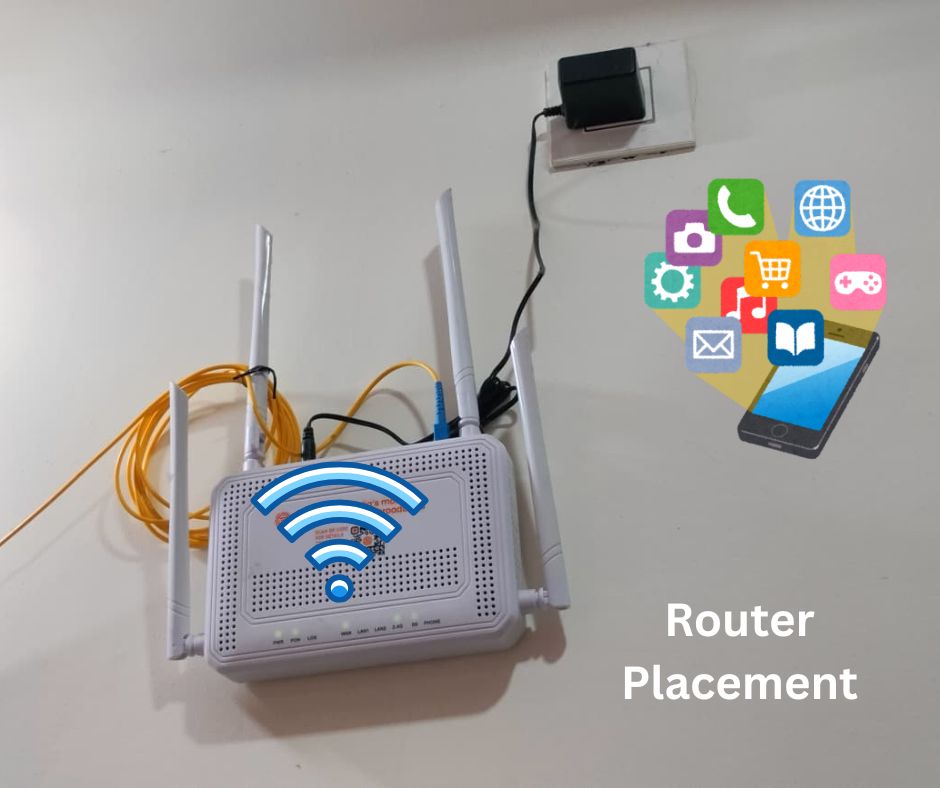
The Elevation: Move your router off the floor and onto a shelf or wall mount.
Why Hyderabad Homes “Kill” Wi-Fi Signals
Before we fix the speed, you need to understand the enemy. Hyderabad’s residential construction is unique—and not Wi-Fi friendly.
The Concrete Wall Effect: Most homes in Dilsukhnagar, Uppal, or Gachibowli are built with thick reinforced concrete. Unlike drywall, concrete acts like a shield, blocking wireless signals.
The “Doorway Trap”: Most fiber technicians install the router near the front door. This means half your signal is being broadcasted to your hallway or the street, not your bedrooms.
Signal Crowding: In high-density apartment complexes, 50 different routers are all fighting for the same “channel,” causing interference during peak evening hours.
Step 1: Optimize Your Router Placement (The Free Fix)
Your router broadcasts signal in a circle. If it’s in a corner, you’re wasting 50% of your coverage.
| ❌ Avoid This (Signal Killers) | ✅ Do This (Signal Boosters) |
| Placing the router on the floor | Mount it 5–6 feet high on a wall or shelf |
| Hiding it inside a wooden cupboard | Keep it in an open space with air circulation |
| Placing it behind the TV or Fridge | Keep it away from large metal objects |
| Corner placement near the main door | Move it as close to the center of the home as possible |
Step 2: The 2.4 GHz vs. 5 GHz Battle
Most routers from Airtel, JioFiber, and ACT are “Dual Band.” If you don’t know which one to use, you’re losing speed.
The 5 GHz Band: Blazing fast but short range. Use this for Gaming, 4K Streaming, and Zoom Calls.
The 2.4 GHz Band: Slower but penetrates walls better. Use this for Smart bulbs, IoT, or devices in far-off rooms.
The Strategy: Force your primary work laptop and Smart TV onto the 5 GHz band to avoid the congestion of the 2.4 GHz frequency.
Step 3: Use a Wired Ethernet Cable (The “Zero Lag” Solution)
If you work from home (WFH) and your career depends on stable video calls, stop using Wi-Fi.
A physical Cat6 Ethernet cable from your router to your laptop eliminates interference and concrete wall issues entirely. It is the only way to guarantee 100% of your plan’s speed without “jitter.”
Step 4: Combat “Peak Hour” Congestion
Between 8:00 PM and 11:00 PM, Hyderabad’s network load peaks. To keep your speed stable:
Schedule Updates: Set your Windows/Mac updates and cloud backups to run at 3:00 AM.
Kick off “Ghost” Devices: Use your router’s admin panel (usually 192.168.1.1) to see if unauthorized neighbors are using your Wi-Fi.
Prioritize: If your router supports QoS (Quality of Service), set your work laptop as the “Priority Device.”
Step 5: Update Your Router Firmware (The “Invisible” Fix)
Many users never update their router’s internal software. Manufacturers release “Firmware Updates” to fix bugs and improve how the router handles speed.
How to do it:
Log into your router admin panel.
Look for the “Advanced” or “System Tools” tab.
Click “Firmware Update.”
Note: If your router was provided by Airtel or Jio, they usually push updates automatically, but you can call customer support to ask for a “Remote Firmware Refresh.”
Step 6: The “Pro Tip” — Change Your DNS Server
Your ISP’s default DNS (the system that translates website names into IP addresses) can be slow or unstable in Hyderabad. Changing this can make websites load significantly faster.
Try these “Fast” DNS settings in your laptop/phone settings:
Google DNS: 8.8.8.8 and 8.8.4.4
Cloudflare DNS: 1.1.1.1 and 1.0.0.1
This doesn’t increase your raw Mbps, but it reduces “latency,” making the internet feel much snappier.
Step 7: When to Upgrade to a Mesh System
If you live in a large independent house or a villa (common in Banjara Hills, Jubilee Hills, or Manikonda), one router is not enough.
Stop using “Wifi Extenders”—they often cut your speed in half. Instead, invest in a Mesh Wi-Fi System (like TP-Link Deco or Tenda Nova). Mesh nodes work together to create a single, seamless “blanket” of Wi-Fi across all floors and rooms.
Summary: The Wi-Fi Health Checklist
❓ Frequently Asked Questions
Q: Why is my fiber broadband slow inside my apartment?
A: Fiber brings speed to the router. Wi-Fi distributes it from the router. If your walls are thick concrete, the speed dies before it reaches your phone.
Q: Does restarting the router actually work?
A: Yes. Routers are small computers. A weekly restart clears the cache and refreshes the connection.
Not Sure if the Problem is Your Router or Your Plan?
If you’ve tried all 7 steps and it’s still slow, you might simply be on the wrong plan for your family size.
Compare the best options for your area:
👉 [Airtel vs JioFiber vs ACT – Detailed Comparison]
👉 [Is 100 Mbps Enough for Work From Home?]
👉 [Best Broadband Providers in Hyderabad 2026]
Disclaimer: hydbroadband.in is an independent informational resource. We do not sell hardware or represent any ISP.